



Running a restaurant or retail shop today is more competitive than ever. Costs are up, new businesses pop up around the corner, and customers have endless choices at their fingertips. In this environment, every dollar of revenue matters!
That’s why owners are constantly looking for ways to not just attract customers, but also to keep them coming back. Marketing campaigns can be expensive, discounts cut into margins, and loyalty programs can be tricky to manage.
One strategy stands out for being simple, effective, and cash-flow friendly: a point of sale (POS) gift card program. With the right POS system, like eHopper, you can issue, sell, and track both physical and digital gift cards directly from your checkout. No extra tools or complicated setups required.
Why Gift Cards Are a Smart Revenue Stream
Gift cards aren’t just a convenience. They are a proven business tool that can boost your bottom line and help you compete.
- Upfront Cash Flow: When a customer buys a $50 gift card, you collect that $50 immediately. That’s money you can use for payroll, supplies, or rent before you even serve a meal or sell a product.
- Customers Spend More: People almost always spend more than the value of their card. A $25 card might turn into a $40 sale. That extra revenue adds up quickly.
- Gift Cards Bring in New Shoppers: Someone may never have walked into your store, but if they receive your gift card as a present, you’ve just gained a new customer.
- A Built-In Marketing Tool: Every time someone gives one of your gift cards, they’re endorsing your business to a friend or family member.
- Seasonal and Event Sales: Gift cards are perfect for holidays, birthdays, graduations, and thank-yous. Instead of worrying about slow months, you can generate steady revenue with prepaid sales.
Setting Up a Gift Card Program with eHopper POS
One of the biggest challenges with gift cards is the technology behind them. That’s where eHopper’s prepaid and gift card program comes in. It’s integrated directly into the POS system, making setup and management simple.
Step 1: Enable the Prepaid & Gift Card App
To begin, activate the Prepaid App in eHopper. This unlocks the ability to create, sell, and track cards. A quick email to eHopper support can get this turned on.
Step 2: Choose Your Format
You have two options:
- Physical gift cards: Printed cards with a unique code. These are great for customers who want something tangible.
- Digital e-cards: Codes generated electronically, which you can print or email to the customer. Perfect for online shoppers or last-minute gifts.
Most businesses offer both, giving customers the freedom to choose.
Step 3: Create Gift Card Products
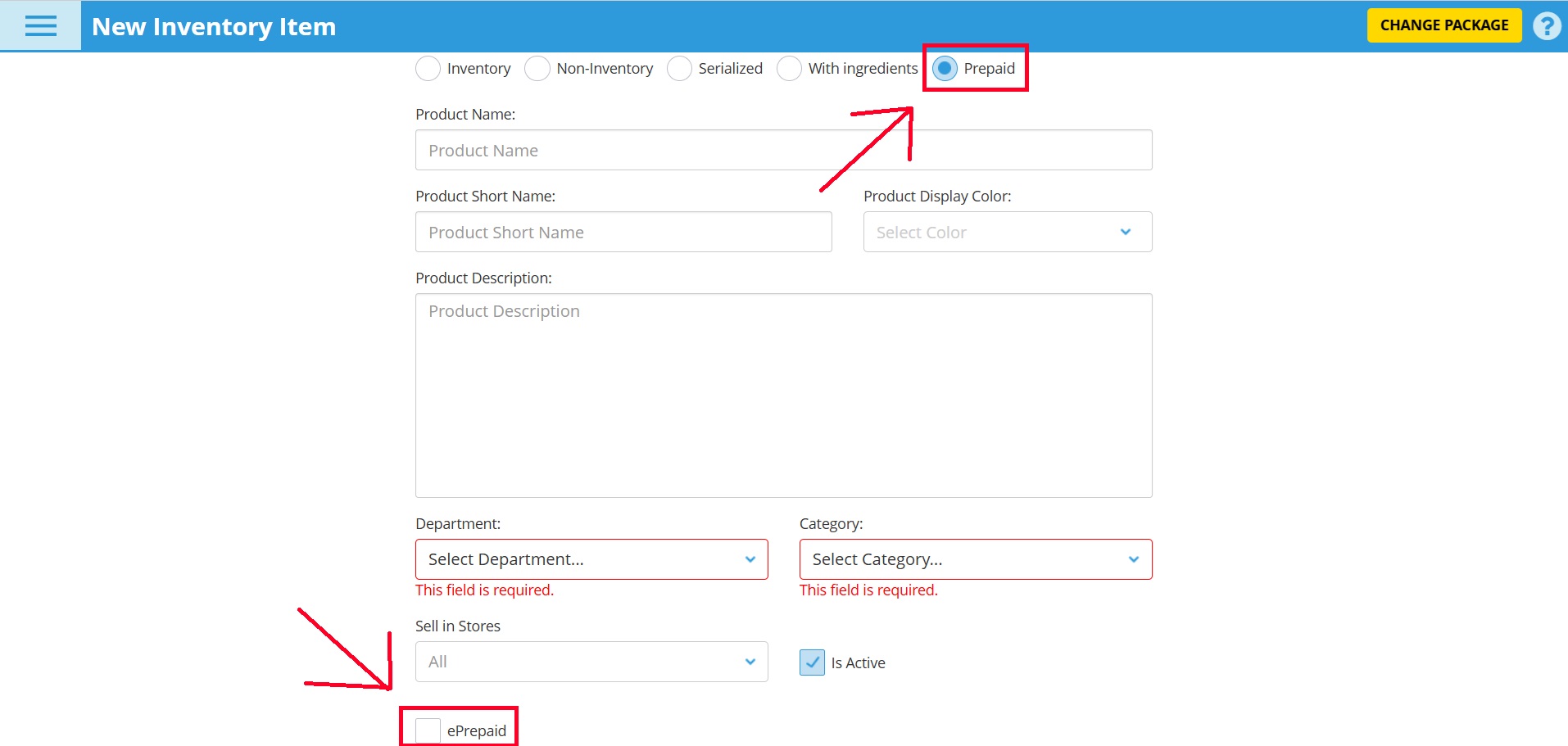
In eHopper’s POS Back Office, set up a new “Prepaid” product. If you want it to be an e-card, check the “ePrepaid” option. Add pricing, a name, and any details you’d like. Then sync with your POS so it’s ready for staff to sell.

Step 4: Selling and Activation
At checkout, your team simply adds the gift card product to the order. For physical cards, they enter or scan the unique 16-digit code. For e-cards, the system generates the code automatically and prints or emails it to the customer.
Step 5: Branding and Expiration Options
From the Back Office, you can customize what shows on the receipt, add your store name, and set expiration rules if you choose. This makes the program feel more professional and aligned with your brand.
Step 6: Tracking and Reporting
eHopper makes it easy to see how gift cards are performing. You can run prepaid reports, track balances, and even look up individual codes. This not only helps with accounting but also shows how much revenue the program is generating.
Step 7: Manage Permissions
You control who can issue or reprint cards by setting staff permissions. That way, only authorized employees handle sensitive steps like activation and refunds.
Making Gift Cards Work Harder for You
Setting up a gift card program is only the first step. To really make it grow your business, you’ll want to promote and integrate it into your daily operations.
- Promote visibly: Place signs at the register, mention cards on your menu or receipts, and feature them on your website.
- Run seasonal campaigns: Push gift card sales around holidays or local events. “Buy a $50 card, get $5 free” is a simple but effective promotion.
- Use for loyalty: Instead of offering a discount, give a $10 card after five purchases. Customers will come back to use it—and likely spend more.
- Offer corporate sales: Local businesses often need employee gifts or client thank-yous. Selling cards in bulk can bring in big upfront revenue.
- Tie into delivery or online ordering: For restaurants using eHopper’s online ordering, gift cards can be redeemed online too.
Why a POS Gift Card Program Matters More Now
Customers expect convenience. They want to give and receive something easy, personal, and flexible. At the same time, businesses need steady revenue and new ways to stand out.
A POS gift card program with eHopper bridges both needs. It puts you in control: you can sell cards directly from your checkout, track usage in real time, and even expand into online sales with e-cards.
More importantly, it’s a strategy that strengthens your business in multiple ways—cash flow, customer loyalty, and visibility in the community.
Final Word
In a market where every dollar matters, gift cards are not just an accessory. They are a revenue stream you can’t afford to ignore.
By using eHopper’s POS gift card program, you get an easy setup, flexible options, and powerful reporting.
Whether you choose physical cards, digital e-cards, or both, the result is the same: more cash upfront, more customers coming back, and more growth for your business.