
How to Use eHopper POS Service Charges to Automate Your Business
Running a restaurant, retail store, or service business means watching every dollar and every minute. Costs keep rising, customers expect quick and accurate checkout, and staff rotation is constant. Any time fees are added manually, you open the door to errors, slow lines, and inconsistent pricing.
eHopper POS service charges are built to fix that. Instead of staff deciding when and how to add fees, you set simple rules in the back office. After that, the POS automatically applies the right fee at the right time. You can use service charges for gratuity, delivery fees, operational fees, and more.
The result is less manual work, cleaner reporting, and a smoother experience for customers and staff.
In this guide, you will see how eHopper POS service charges work, why they matter, how they differ from surcharges, how to set them up step by step, and how to start using them to automate your business.
Why Service Charges Matter for Your Business
Service charges are not just another line on the receipt. When you use them correctly, they quietly fix everyday problems that cost you money and time.
Less manual work for staff
If your staff has to remember when to add fees, how much to add, and how to calculate them, mistakes are guaranteed. During a rush, someone forgets to add gratuity, uses the wrong rate, or skips a delivery fee. With eHopper POS service charges, the system takes over that work.
Fees apply automatically when orders meet the rules you set. There are no manual calculations, and nothing relies on memory. This keeps lines moving, reduces training time for new employees, and removes stress from your team during peak hours.
Consistent pricing every time
Customers notice when pricing feels random. Service charges remove the guesswork. If an order meets your conditions, the fee applies. If it does not, it does not. The same rule works the same way, every time, no matter who is working the register.
That means the same fee on every qualifying order, no staff discretion issues, and clear, predictable pricing. Over time, this builds trust and reduces awkward conversations at checkout.
Better control over rising costs
Instead of constantly raising menu prices or item prices, many businesses use service charges to offset specific costs. For example, you can add a delivery service fee for off site orders, or an operational fee to help cover labor or utilities.
Because you can target service charges by order type or conditions, you keep flexibility. You can adjust fees in the back office without redesigning menus or reprinting materials.
Support fair compensation for staff
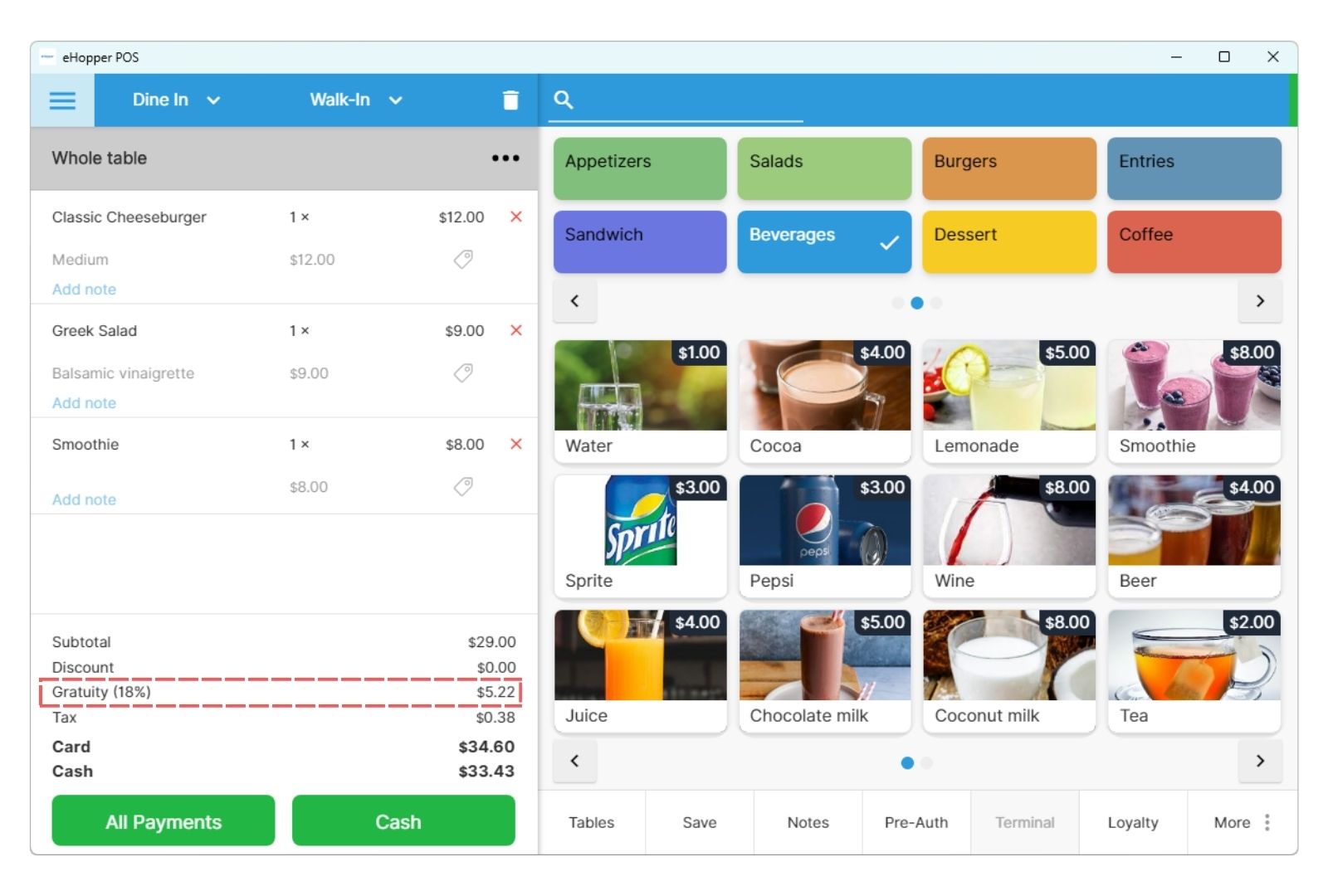
Automatic gratuity is one of the most common use cases for service charges. For example, you might want to add 18 percent gratuity for dine in parties of 6 or more. With eHopper, you can define that rule once. The POS will then apply the gratuity automatically when the customer count meets that minimum.
This protects staff income, avoids awkward back and forth with customers, and keeps expectations clear. Since service charges are separate from tips, you can also track them easily and handle them correctly in reports and payroll processes.
Cleaner reports and accounting
Service charges in eHopper POS appear as their own category in reporting. That means you can see exactly how much revenue came from fees, not just sales. It makes reconciliation easier, gives you better visibility into the impact of your policies, and helps you compare performance across locations.
When you sit down with your accountant or review monthly results, you are not guessing where that extra income came from. It is already broken down for you.
Service Charges vs Surcharges: What Is the Difference?
Many people use the words service charge and surcharge like they mean the same thing, but they actually describe different concepts. Understanding the difference helps you choose the safer and more flexible option for your business.
What is a service charge?
A service charge is a fee that your business defines and applies for a specific reason. You decide when it applies, how it is calculated, and what it is called on the receipt.
Common examples of service charges include:
- Mandatory gratuity for large parties
- Delivery fees for off premise orders
- Operational or service fees
You have full control over the rules. Service charges are part of your pricing strategy, and they can be configured to match your business model.
What is a surcharge?
A surcharge is typically tied to the cost of accepting certain payment methods, such as credit cards. In many regions, surcharges are regulated and may require specific disclosures, notices, and rules about how and when they can be applied.
Because surcharges touch payment processing regulations, they can be more complex to manage and riskier if they are not set up correctly.
Important: The service charge program is not intended to support surcharging. Merchants are solely responsible for compliance with all applicable laws and rules, including those applicable to imposing service charges. Consult a legal professional for advice prior of using surcharge or service charge program.
How to Set Up Service Charges in eHopper POS
The good news is that you do not need to be a tech expert to set this up. Service charges in eHopper POS are configured in the back office, and the process only takes a few steps.
Step 1, install and open the service fee settings
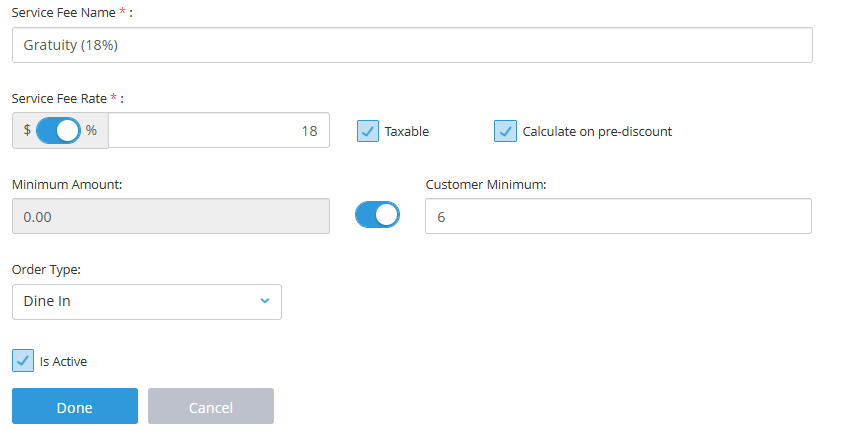
Log in to your eHopper POS back office. Go to the App Directory and locate the Service Fee and Cash Discount app. Install it. After installation, the link will appear in the left navigation. Select it and create a new service fee.
Step 2, give the service charge a clear name
Create a name that customers and staff can understand at a glance. Examples include “Gratuity 18 percent”, “Delivery Service Fee”. The name you choose will appear on the POS screen and on receipts, so avoid vague or confusing labels.
Step 3, set the rate
Decide how the fee should be calculated. In eHopper, you can set the service charge as a percentage of the order total or as a flat dollar amount. Percentage works well for gratuity. Flat amounts work well for fixed delivery fees or small service fees.
Step 4, configure tax and discount behavior
Next, decide whether the service charge should be taxable and whether it should be calculated before discounts are applied. These options let you match your local rules and internal policies. For example, you may want gratuity to be taxable in some regions, or you may want the fee to be based on the pre discount subtotal.
Step 5, set conditions for when it applies
This is where you really automate your workflow. You can tell eHopper to apply a service charge only for certain order types, such as dine in or delivery. You can also set a minimum customer count, which is perfect for automatic gratuity on large parties, such as 6 or more guests.
Once those conditions are in place, your staff does not have to think about it. If the order meets the rules, the fee is added. If not, it is skipped.
Step 6, choose the scope
If you run multiple locations, you can decide whether a service charge should apply across the whole company or only at a specific store. This is useful when your downtown location has different policies than a suburban location, or when delivery is offered in one area but not another.
Step 7, activate the service charge
When you are happy with the settings, mark the service charge as active and save it. From that point on, the POS will apply it automatically at checkout based on the rules you defined. If your needs change, you can always come back later to edit the rate, update conditions, or disable the fee.
FAQs About eHopper POS Service Charges
Are service charges the same as tips?
No. Service charges are controlled by the business and added automatically based on rules. Tips are optional amounts that customers choose to add. In eHopper, they are handled separately.
Can I use more than one service charge at the same store?
Yes. You can create multiple service charges, such as a gratuity fee and a delivery fee, and apply them at the same location as needed.
Can service charges be different for each location?
Yes. You can configure service charges per store or at the company level. That gives you flexibility if each location has its own pricing or fee structure.
Do customers see the service charge on their receipt?
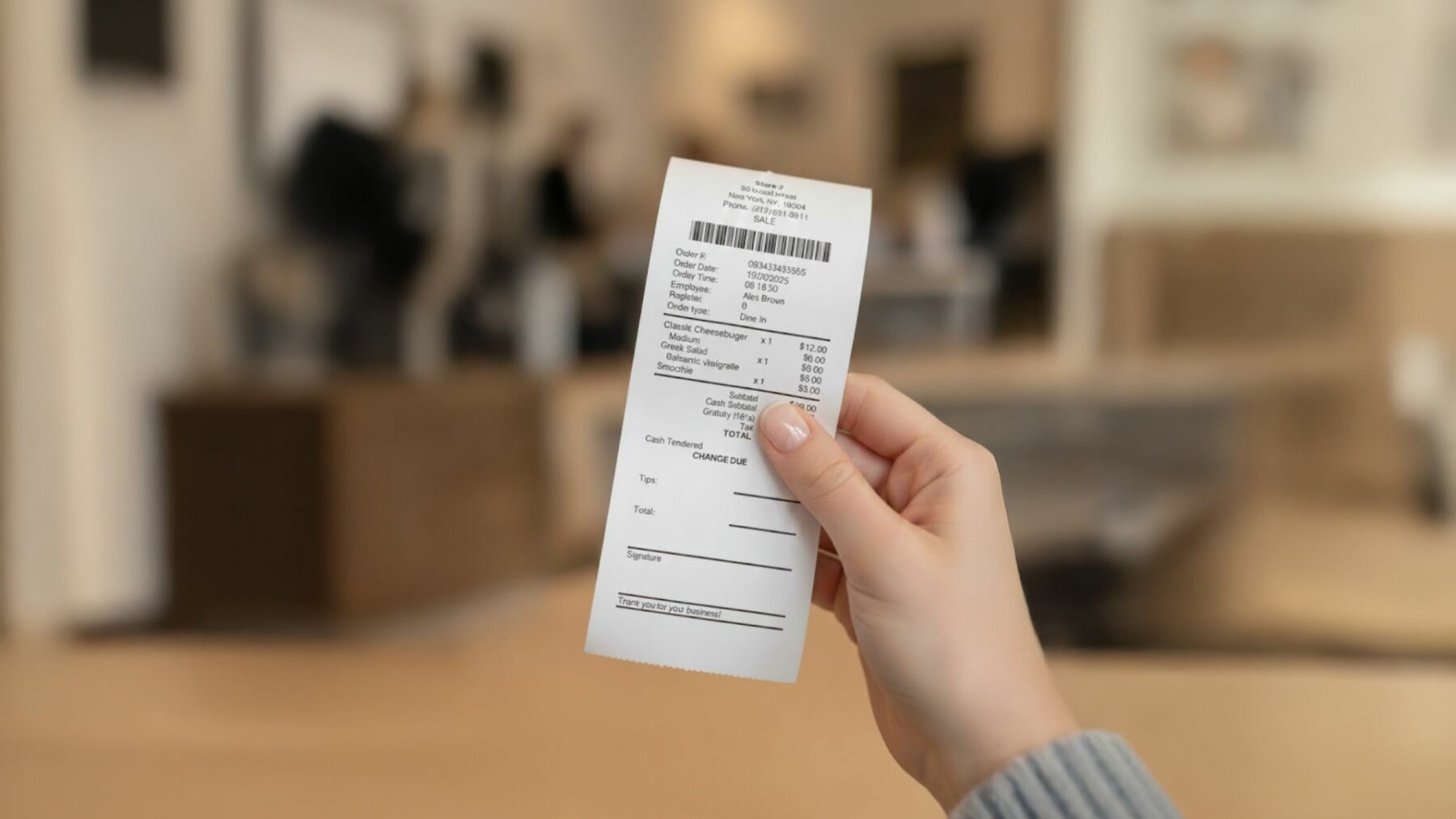
Yes. Service charges appear as a separate line item on the POS screen and on printed or digital receipts. This keeps everything transparent and reduces confusion.
Are service charges included in reports?
Yes. eHopper tracks service charges in their own reporting category, so you can see how much revenue they generate and how they impact your totals.
Can I change or disable a service charge later?
Yes. You can edit the rate, name, conditions, or tax behavior at any time in the back office. You can also turn a service charge off with a simple toggle if you no longer need it.
Get Started With eHopper POS Service Charges
Service charges in eHopper POS give you a simple way to automate fees, protect margins, and support your staff without adding extra work at checkout. Once you set up the rules, the system quietly handles the rest. Your team can focus on serving customers, not doing math.
If you want to reduce errors, keep pricing consistent, and get clearer reporting on fee revenue, eHopper POS service charges are a powerful tool to add to your setup. You can get started with eHopper for free, explore the back office, and test different service charge options to see what works best for your business.
Turn your service fees into a smart, automated system instead of a manual headache. Try eHopper POS for free and start using service charges to run a more efficient and predictable operation.