How to Set Up eHopper POS for Food Trucks [Step-by-Step Guide]
Running a food truck means working fast, using space wisely, and keeping costs low. Every second and square inch matters when customers are waiting for their meals.
One tool that can make or break your operation is the Point of Sale system. A good POS keeps your orders organized, payments smooth, and customers happy. A bad one slows you down and costs you money.
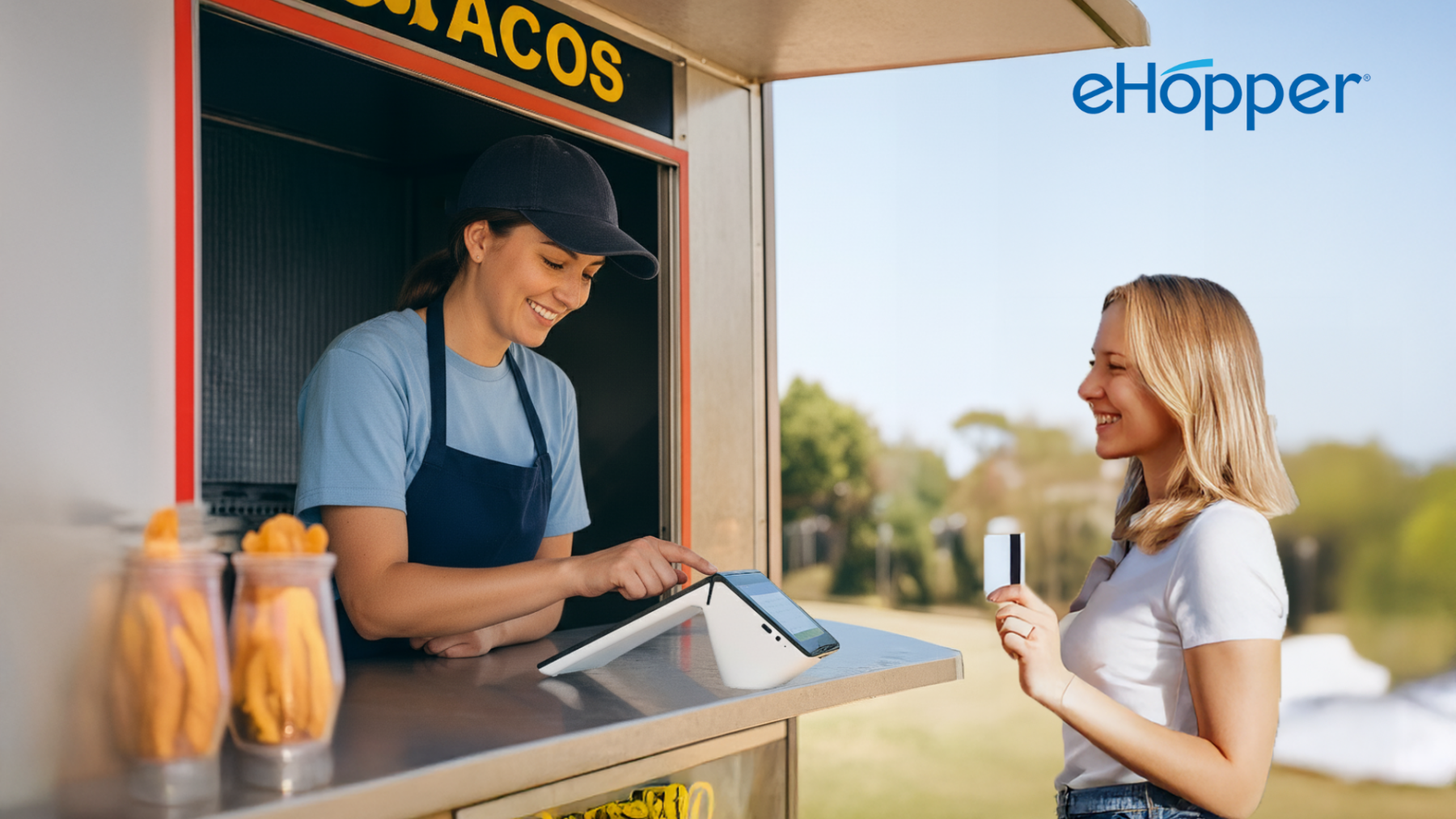
eHopper POS gives food truck owners everything they need to take orders, process payments, and manage operations in one place.
It includes online ordering with QR codes, a kitchen display system, loyalty tools, and free support.
The system is designed to work in small spaces while staying affordable for growing businesses.
Best of all, it can be completely free when you use eHopper’s dual pricing option for card processing.
In this guide, you will learn how to set up eHopper POS for your food truck.
The process includes setting up your Back Office account, installing the POS app, connecting hardware, and starting operations.
Everything works together smoothly, so you can focus on serving food instead of dealing with technical issues.
Why the Right POS System Matters for Food Trucks
Food trucks move fast, and every order counts. A reliable POS system helps you stay organized and avoid long lines.
It also helps you track sales, manage inventory, and offer digital payments.
Using a free POS for food trucks like eHopper gives you all these benefits without adding extra costs or equipment.
Here is what you can expect from eHopper:
- Free POS software and free hardware when you process with eHopper
- Built-in dual pricing so you can process credit cards with no cost to you
- Online ordering with QR codes and a kitchen display system for fast prep
- Loyalty and customer management tools
- Free technical support and software updates
With eHopper, you can manage everything from one system and serve customers faster while keeping more of your profits.
How Free Processing Works with Dual Pricing
Credit card processing fees can take a big bite out of your profit. eHopper helps you avoid that with dual pricing.
The system automatically displays both a cash price and a card price.
Customers who pay by card cover the processing cost, and you still receive the full sale amount.
It is completely transparent and easy to understand, similar to how gas stations have operated for years.
Unlike other systems that require paid add-ons, eHopper supports dual pricing right out of the box.
It works directly in the POS software, receipts, and reports with no setup fees.
You can process payments for free and stay compliant with industry rules.
Phase 1: Back Office Setup (Online Portal)
The Back Office is where you manage your food truck business online. You can access it through any browser on your computer or tablet. It is used to create menus, set tax rates, and adjust store information.
Step 1: Sign Up for an Account
Visit the eHopper website and sign up for your free POS account.
You will receive an email with your Account ID, License Key, and temporary PIN.
Step 2: Log In to the Back Office
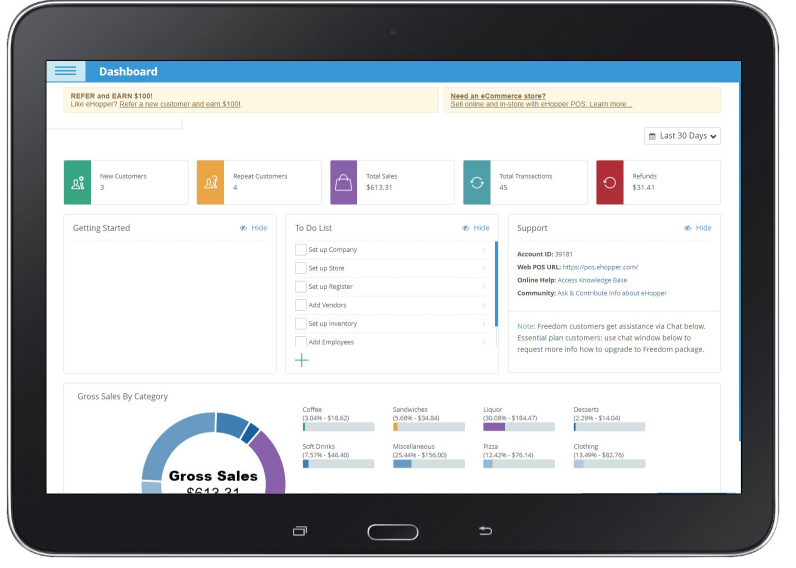
Use Google Chrome to open the eHopper Back Office portal and log in with your credentials. You will see your main dashboard with company and store settings.
Step 3: Enter Company and Store Details
Update your company name, contact information, and business hours. Then go to Store Settings to enter your food truck’s location, currency, and tax information. If you move between cities, you can update this information anytime.
Step 4: Create Your Menu
Go to the Inventory section to build your menu. Organize your items by departments, categories, and products. For example:
- Departments: Food, Drinks
- Categories: Burgers, Tacos, Smoothies
- Products: Cheeseburger, Chicken Taco, Mango Smoothie
Add modifiers such as “extra cheese” or “no onions” to allow customization. You can also upload item photos to make the POS screen more visual and faster to navigate.
Phase 2: Install and Configure the POS App
eHopper runs on multiple platforms.
You can use the All-in-One Smart POS device or install the software on supported hardware such as Windows PCs or Android tablets like the Samsung Tab A7.
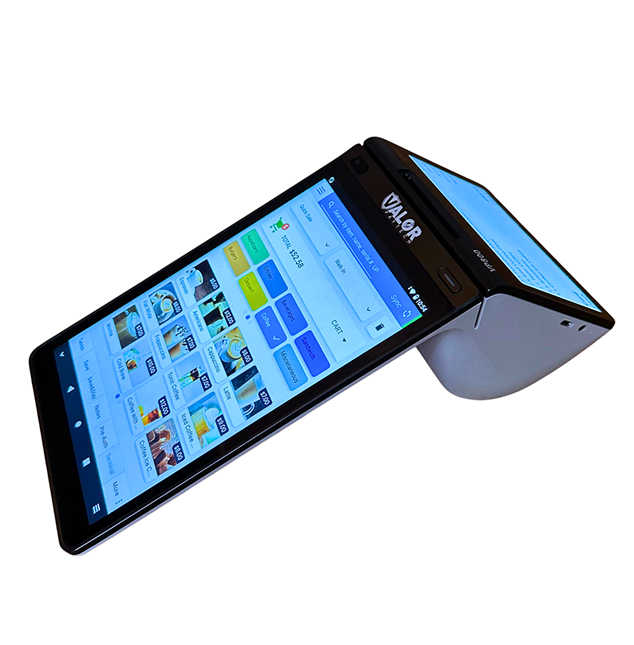
The All-in-One Smart POS device is the most popular option for food trucks.
It combines a dual-screen system, built-in printer, and payment terminal in one compact design. You can ring up sales, print receipts, and manage all operations from one unit. It saves space and is built for busy food truck environments.
Step 1: Choose Your Device
Select the hardware that fits your setup. The Smart POS device is ideal for full operations, while a tablet or PC can serve as an additional station or backup device.
Additional POS Devices
- Android set up: Download “eHopper POS” from the app store.
- Windows set up: Download the installer from the eHopper website.
Step 3: Activate and Sync
Open the app, enter your Account ID, License Key, and PIN. In the menu, select Synchronize to download your menu, prices, and settings from the Back Office. Your POS is now ready to use.
Phase 3: Hardware Setup
Connecting your hardware is simple and takes only a few minutes. Most food trucks prefer compact and wireless devices to save space and avoid tangled cables.
Step 1: Power and Network
Make sure your POS device, terminal, and printer are connected to power and the same Wi-Fi network. If your internet goes down, eHopper can still operate offline and will sync all transactions once you reconnect.
Step 2: Set Up the Payment Terminal
Go to Settings in the POS app and choose Terminal Setup. Enter connection details for your payment device. IMPORTANT: Ehopper supports various payment terminal types such as Valor, Pax, Dejavoo, Godaddy Poynt, Charge Anywhere. Contact us for assistance.
Once connected, you can accept chip, tap, and swipe payments right away.
Step 3: Connect the Printer or KDS
If you use a separate receipt or kitchen printer, open Settings and choose Printer Setup. Search for available Ethernet supported printers and print a test receipt.
You can also set up a Kitchen Display System screen to view incoming orders digitally.
Step 4: Optional Cash Drawer
If you accept cash, connect a small drawer to your receipt printer. In Settings, open the Cash Drawer section and test the connection to make sure it opens properly.
Phase 4: Start Taking Orders
Once everything is set up, you are ready to start serving customers.
Open the Register
At the start of your day, open your register in the POS app and enter the starting cash amount.
Take Orders
- Select a category or tap or scan the menu item
- Add modifiers if needed
- Tap Pay and select a payment method
You can also let customers order directly using QR codes displayed on your truck. Orders are synced to POS, kitchen printers or KDS screen.
Close the Register
At the end of your shift, close the register, count your cash, and review daily reports in the Back Office. The system automatically tracks sales, taxes, and payment types.
All-in-One Tools for Food Truck Success
eHopper gives you every tool needed to run your food truck efficiently:
- Free POS software and smart hardware
- Free credit card processing through dual pricing
- Online ordering and QR code menus
- Kitchen Display System for faster preparation
- Loyalty programs and customer tracking
- Free support and regular updates
All features work together to help you save money, speed up service, and grow your business.
Get Started Today
eHopper offers a complete free POS system for food trucks designed for small spaces and mobile operations.
Setting up eHopper point of sale is simple and intuitive. Once installed, you can take orders, print receipts, track sales, and process payments at no cost.
The system was built for mobile food businesses that want reliable technology without high fees.
Visit free pos system offer page and start your setup today.